
03 / Kill Switch
Help prevent traffic leaks with Kill Switch
If the VPN connection drops, Kill Switch helps block internet traffic that would otherwise leave outside the VPN. Enable it in Options when you want this extra protection.
PlainVPN / Windows
Connect your Windows PC with PlainVPN. Choose a location, protect your connection with WireGuard, and decide which apps use the VPN.
01 / Features
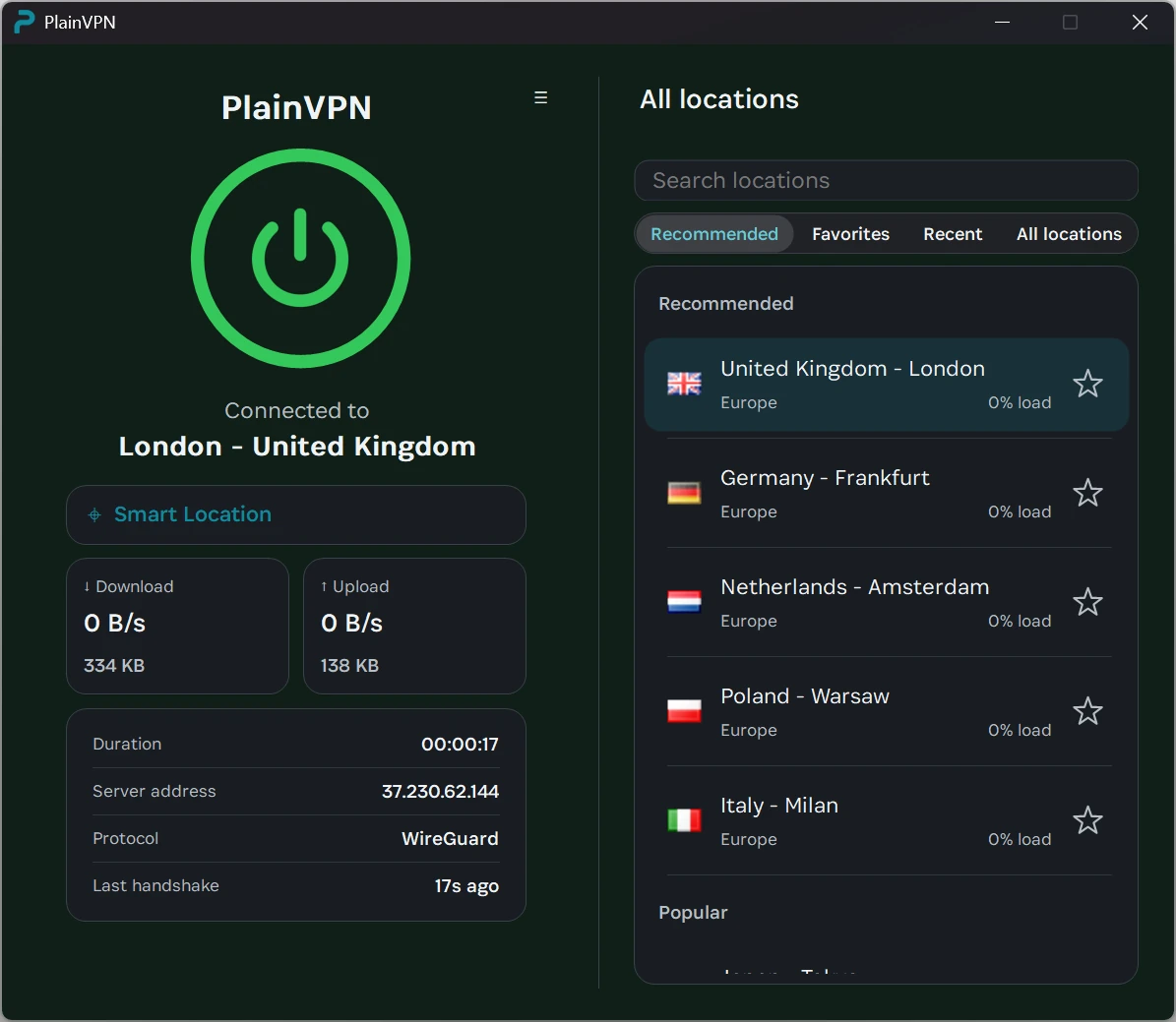
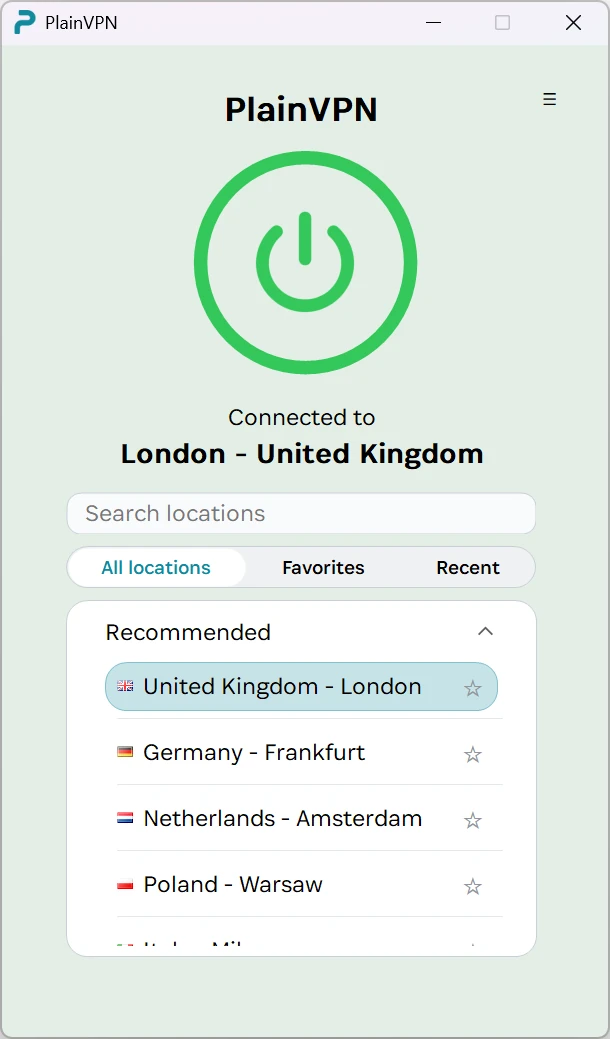
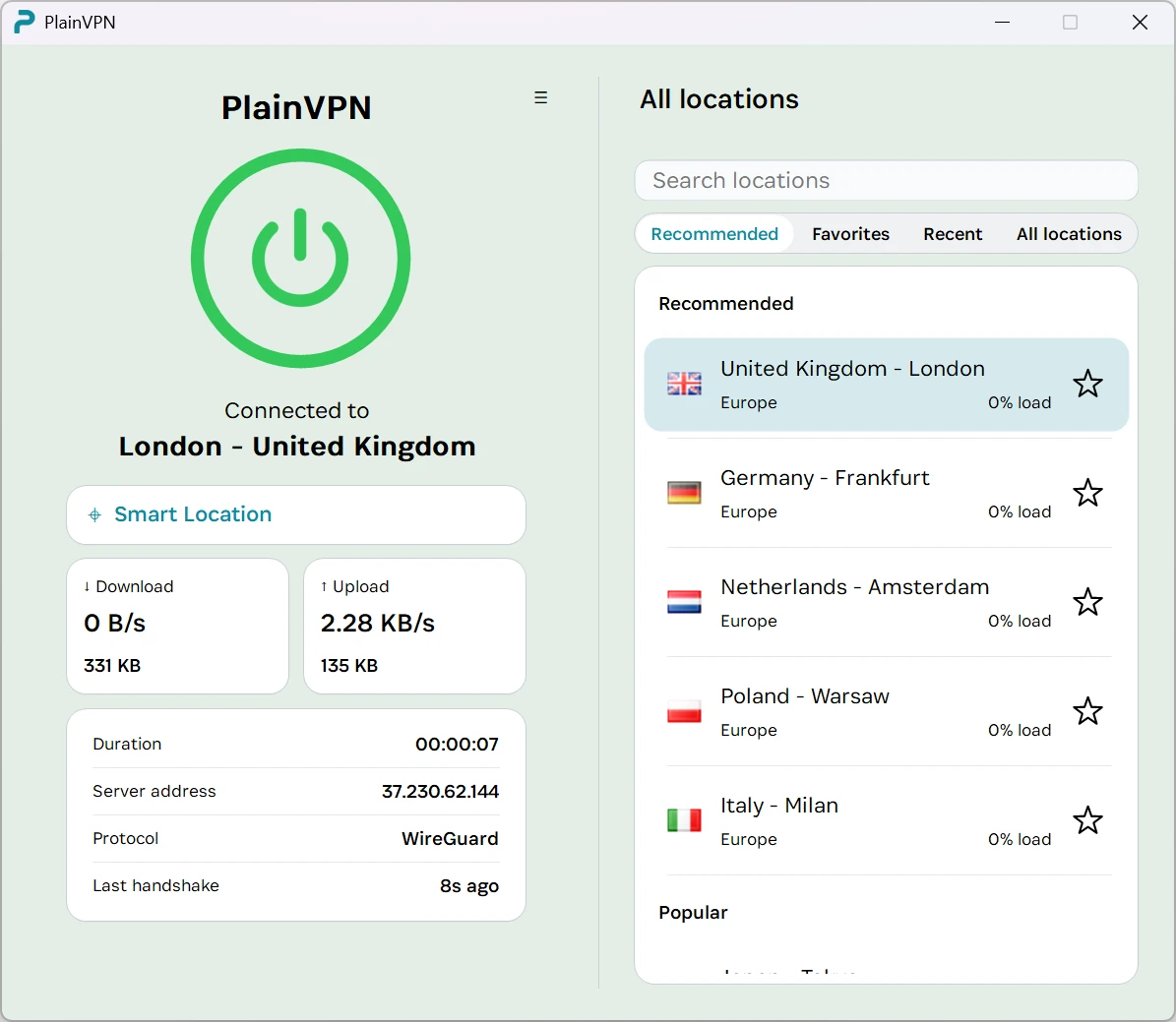
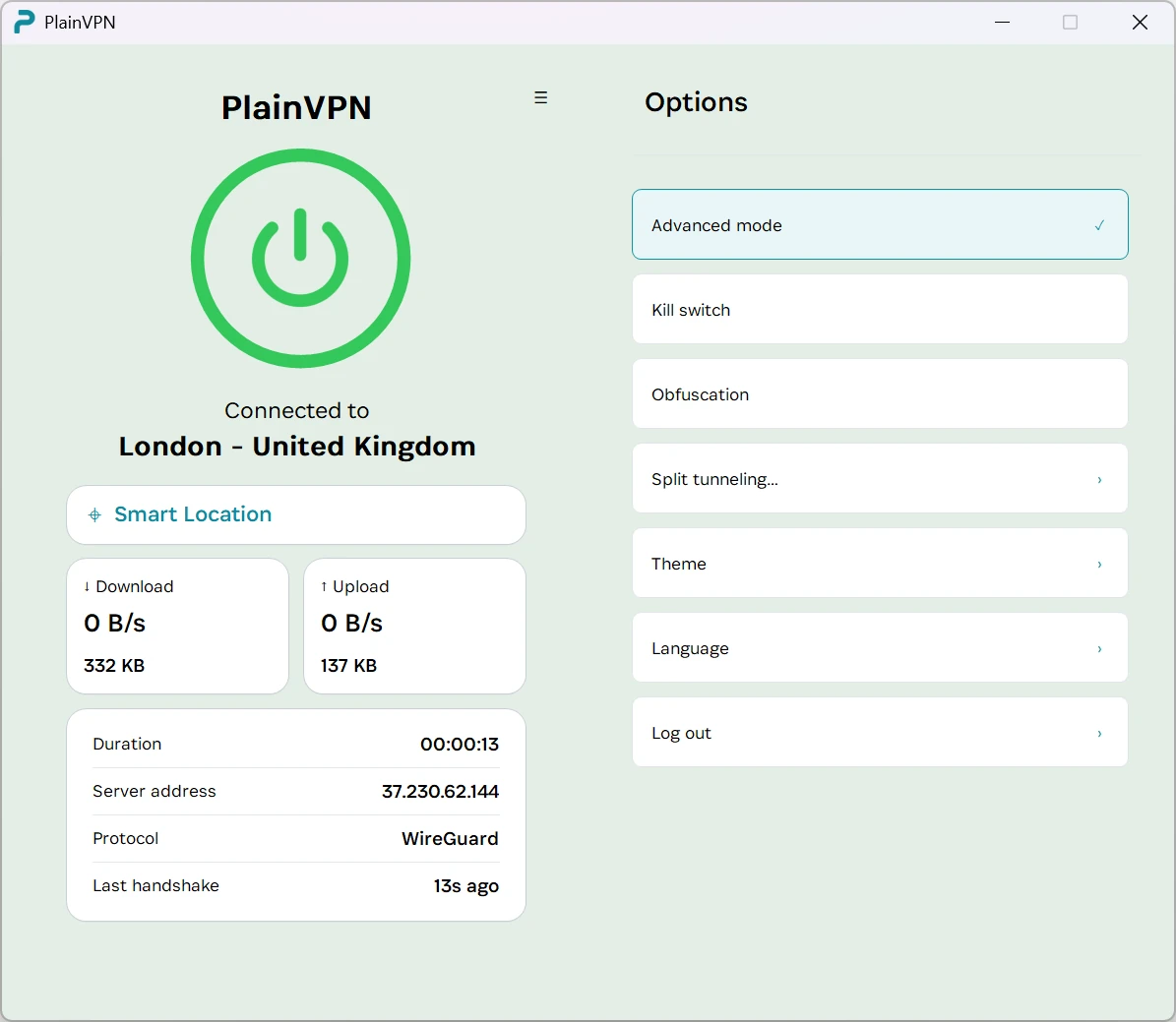
Keep your connection and locations together in Simple mode. Switch to Advanced mode for transfer statistics, connection details, and more control. Find a server with Smart Location, then save your favorites for next time.
02 / Split Tunneling
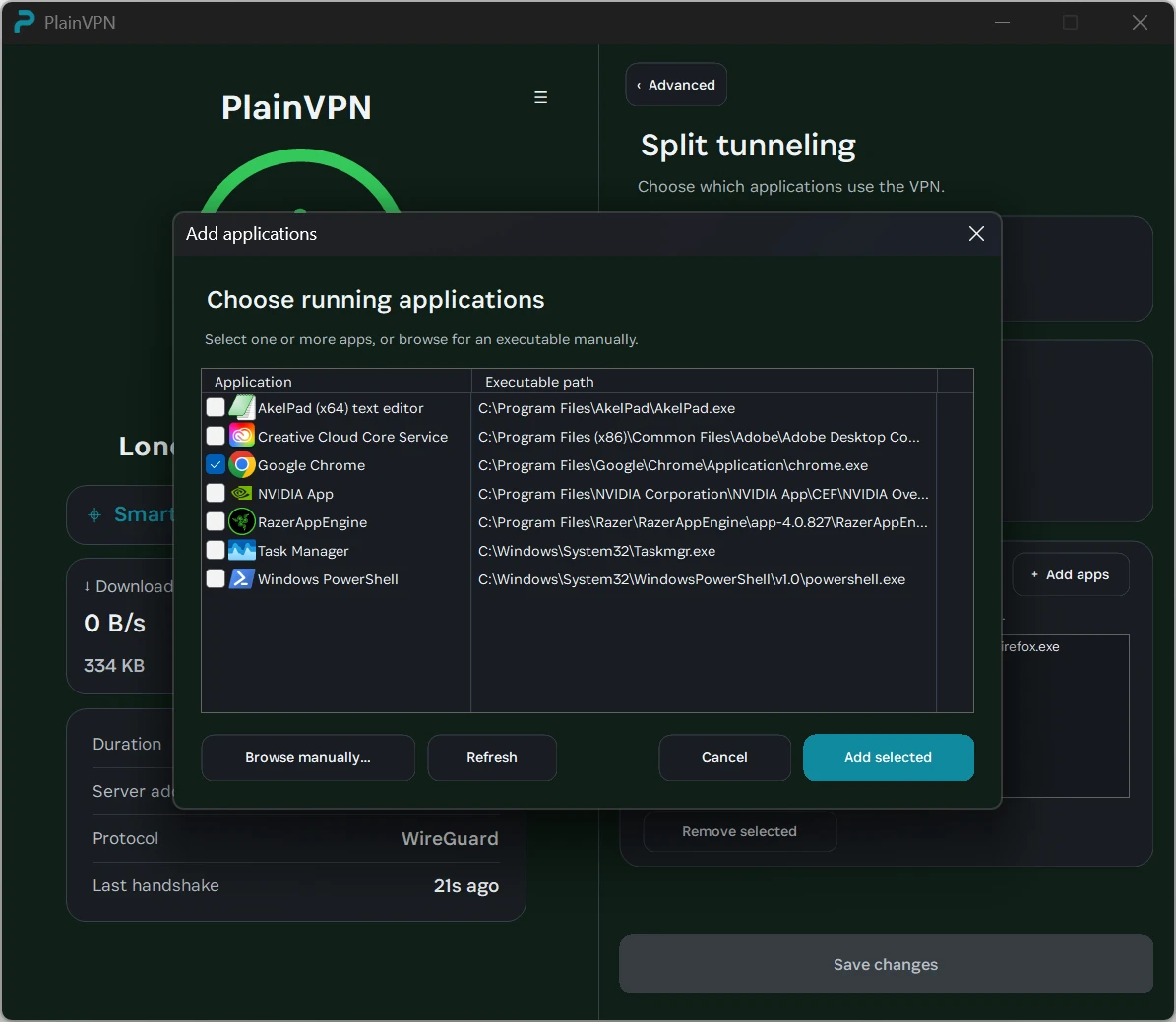
Split Tunneling lets you route only selected apps through the VPN, or let selected apps bypass it. Add applications in the picker and save your choices. Keep different apps on the connection that suits them.
03 / Kill Switch
If the VPN connection drops, Kill Switch helps block internet traffic that would otherwise leave outside the VPN. Enable it in Options when you want this extra protection.
04 / WireGuard
PlainVPN handles the VPN connection inside the Windows app. Choose your location and connect without importing configuration files. Advanced mode shows your server address, connection duration, and data transfer statistics.
Read our privacy policyDownload the Windows installer and follow the setup prompts on your PC.
Sign in to your PlainVPN account. Choose a plan if you do not already have active access.
Select a server or use Smart Location, then press the connect button. Open Options to configure Kill Switch or Split Tunneling.
Yes. The Windows installer is designed for Windows 10 and Windows 11. Download it to your PC, install the app, and sign in to get started.
Yes, the installer is free to download. Using the VPN requires active PlainVPN access. Check the pricing page for available plans.
Yes. Enable Split Tunneling, choose the mode where only selected apps use the VPN, add the application, and save your changes. The other mode lets selected apps bypass the VPN instead.
No. Simple mode lets you choose a location and connect. Advanced mode adds connection statistics and details for people who want to see more.
Download the app, sign in, and choose your connection. Need help getting started? Our support team can help.
All VPN apps