
PlainVPN / iOS + iPadOS
VPN for iPhone and iPad
Connect your iPhone or iPad with PlainVPN. Choose a location, switch between Simple and Advanced mode, and keep your favorite servers close at hand.
01 / Features
Two modes. One familiar connection.
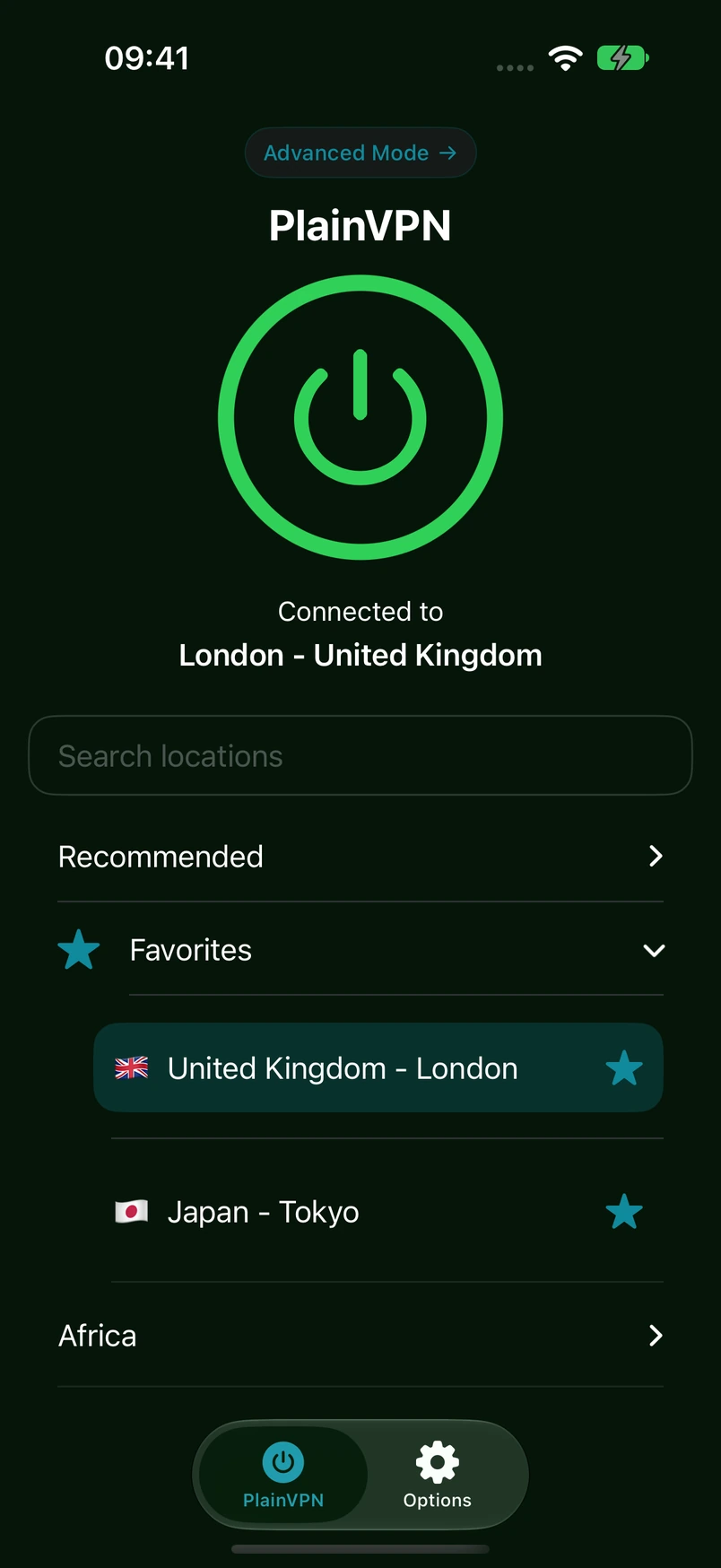
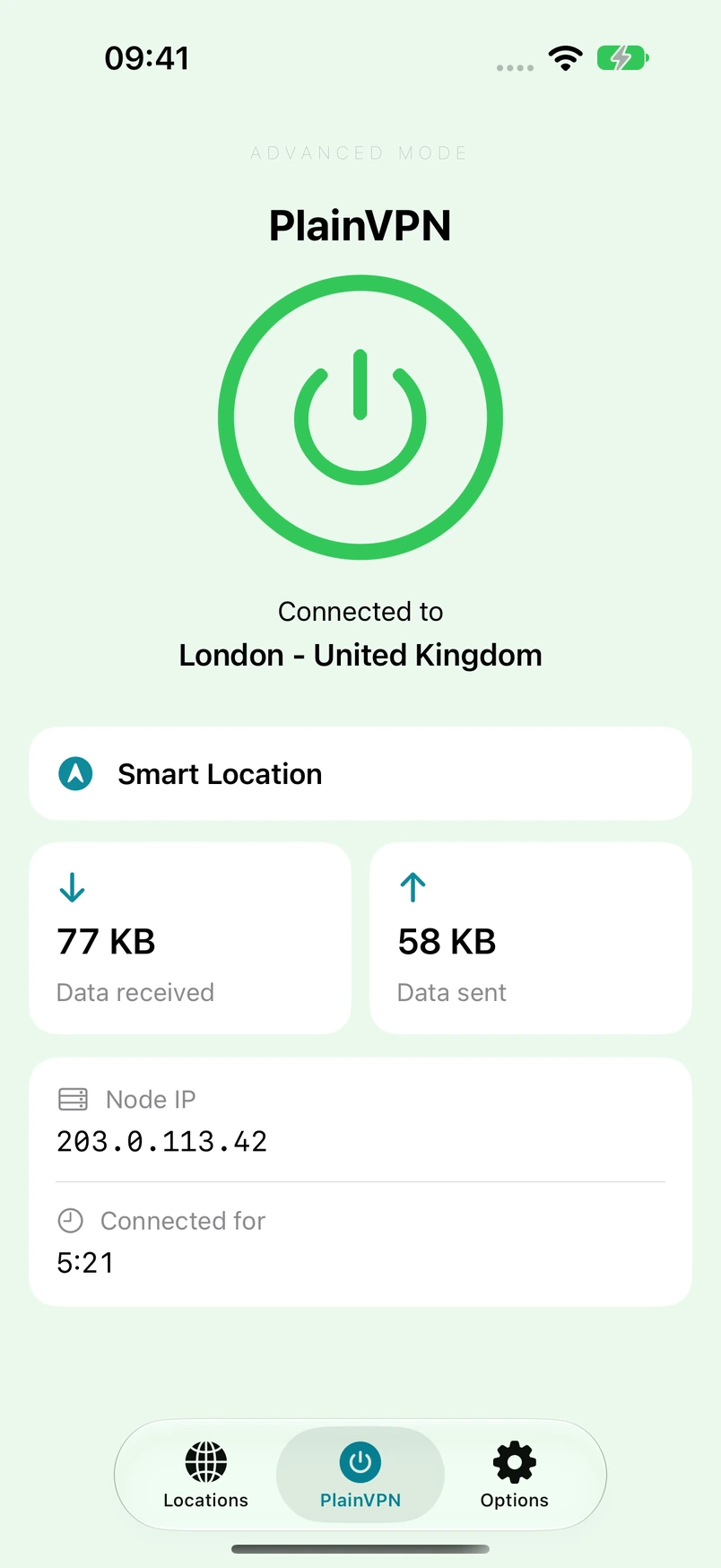
Use Simple mode for everyday connections, or open Advanced mode to see session traffic, connection duration, and server details. Smart Location helps you choose a server, while Favorites keeps the locations you use close at hand.
02 / iPad
Room to do more on iPad
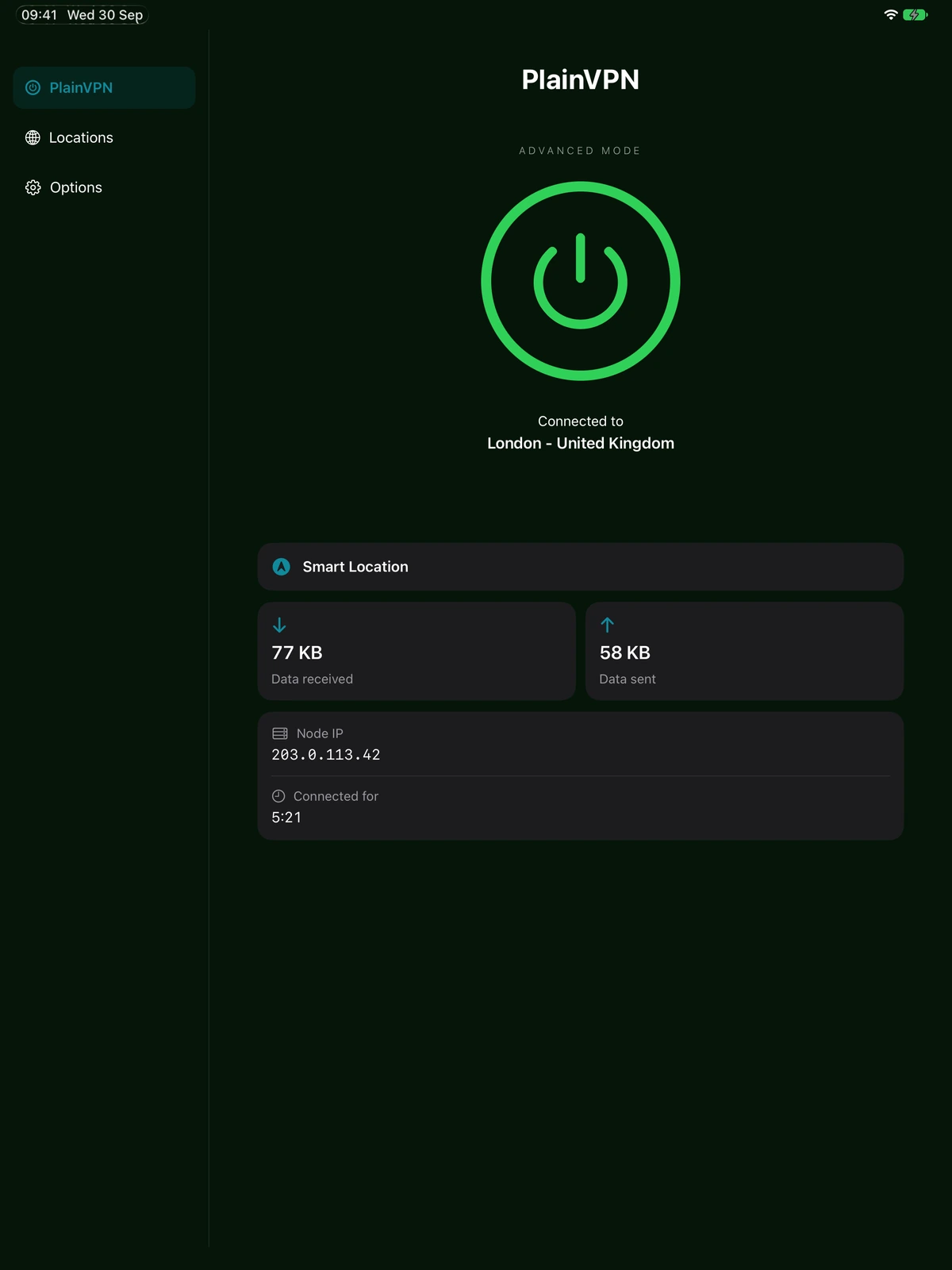
PlainVPN adapts to your iPad with a sidebar for navigation and more room for your connection details. Use the same Simple and Advanced modes on a larger screen, with your locations just a tap away.
03 / Features
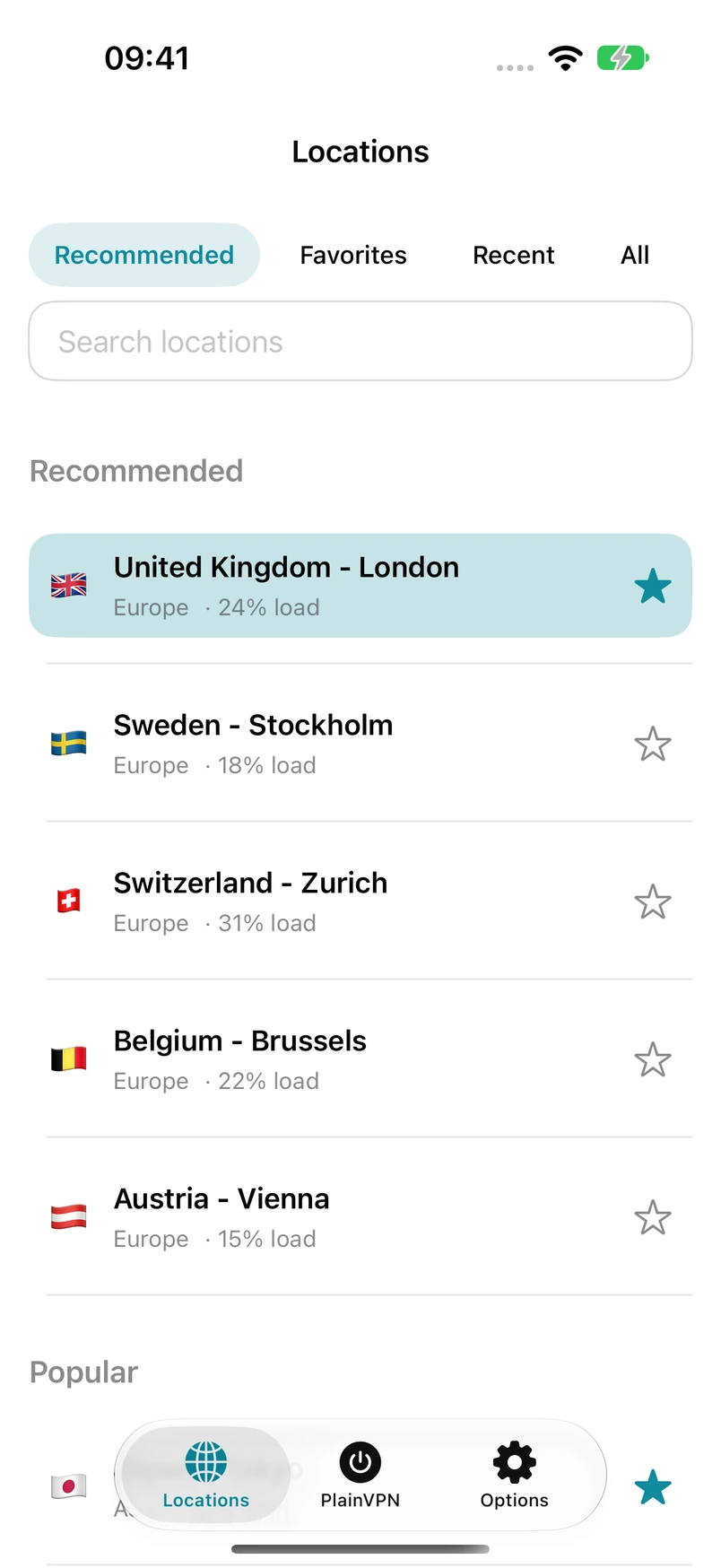
Find a location. Make it a favorite.
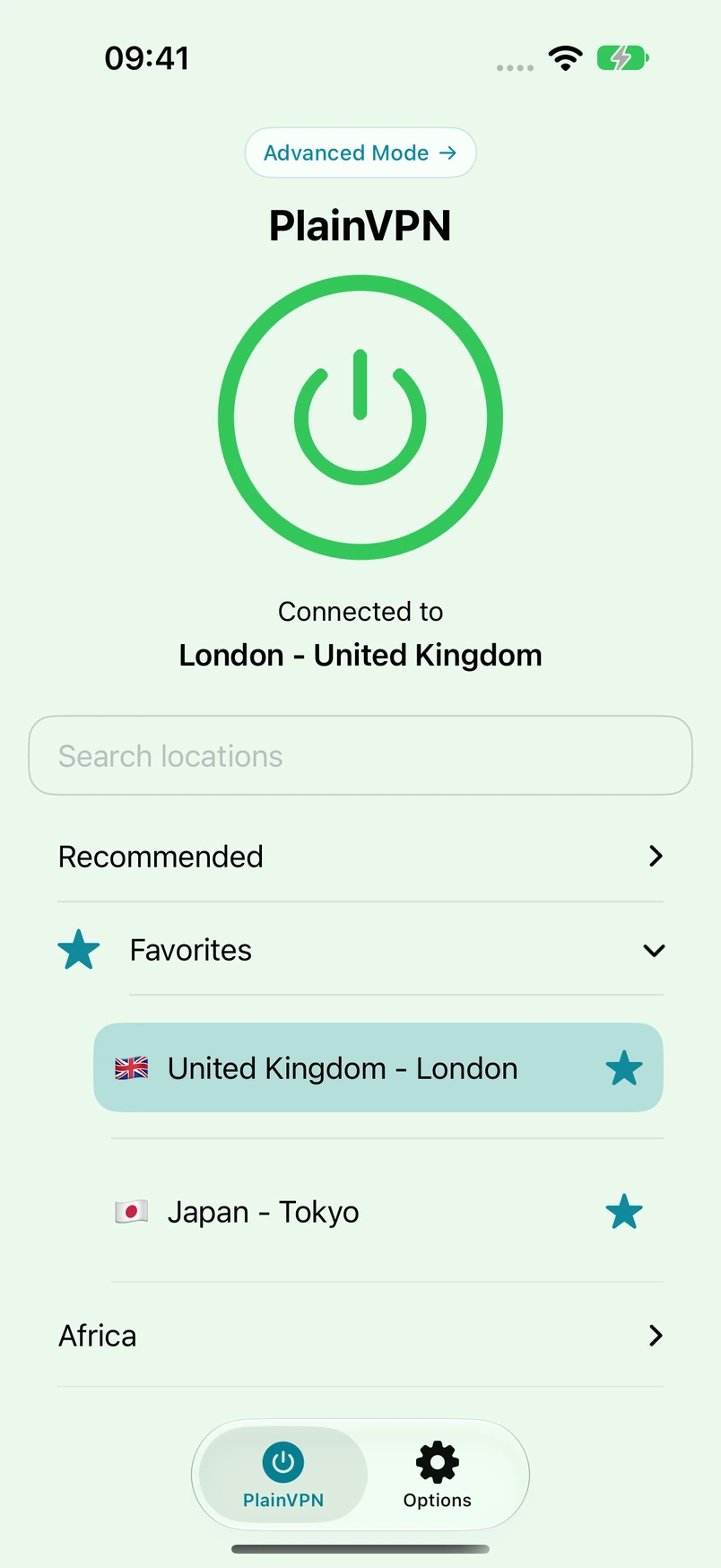
Search locations, browse recommendations, or return to a recent server. Tap the star to save a favorite. In Advanced mode, the Locations tab gives your server list its own screen.
Read our privacy policySet up your iPhone or iPad VPN
Download and install
Get PlainVPN from the App Store and open it on your iPhone or iPad.
Sign in
Sign in to your PlainVPN account. Choose a plan if you do not already have active access.
Choose a location and connect
Select a location or use Smart Location, then tap the connect button. Allow the VPN configuration when your device asks.
Questions
Which iOS and iPadOS versions are supported?
PlainVPN requires iOS 16 or later on iPhone, or iPadOS 16 or later on iPad. Check the App Store listing on your device before installing.
Is the iPhone and iPad app free to download?
Yes. Downloading the app from the App Store is free. Using the VPN requires active PlainVPN access. See the pricing page for available plans.
Can I save my favorite VPN locations?
Yes. Tap the star beside a location to add it to Favorites. Open Favorites when you want to find it again.
Do I need Advanced mode to connect?
No. Simple mode lets you choose a location and connect. Advanced mode adds connection statistics and details for people who want to see more.
Your iPhone. Your iPad. Your connection.
Download the app, sign in, and choose your connection. Need help getting started? Our support team can help.
All VPN apps